
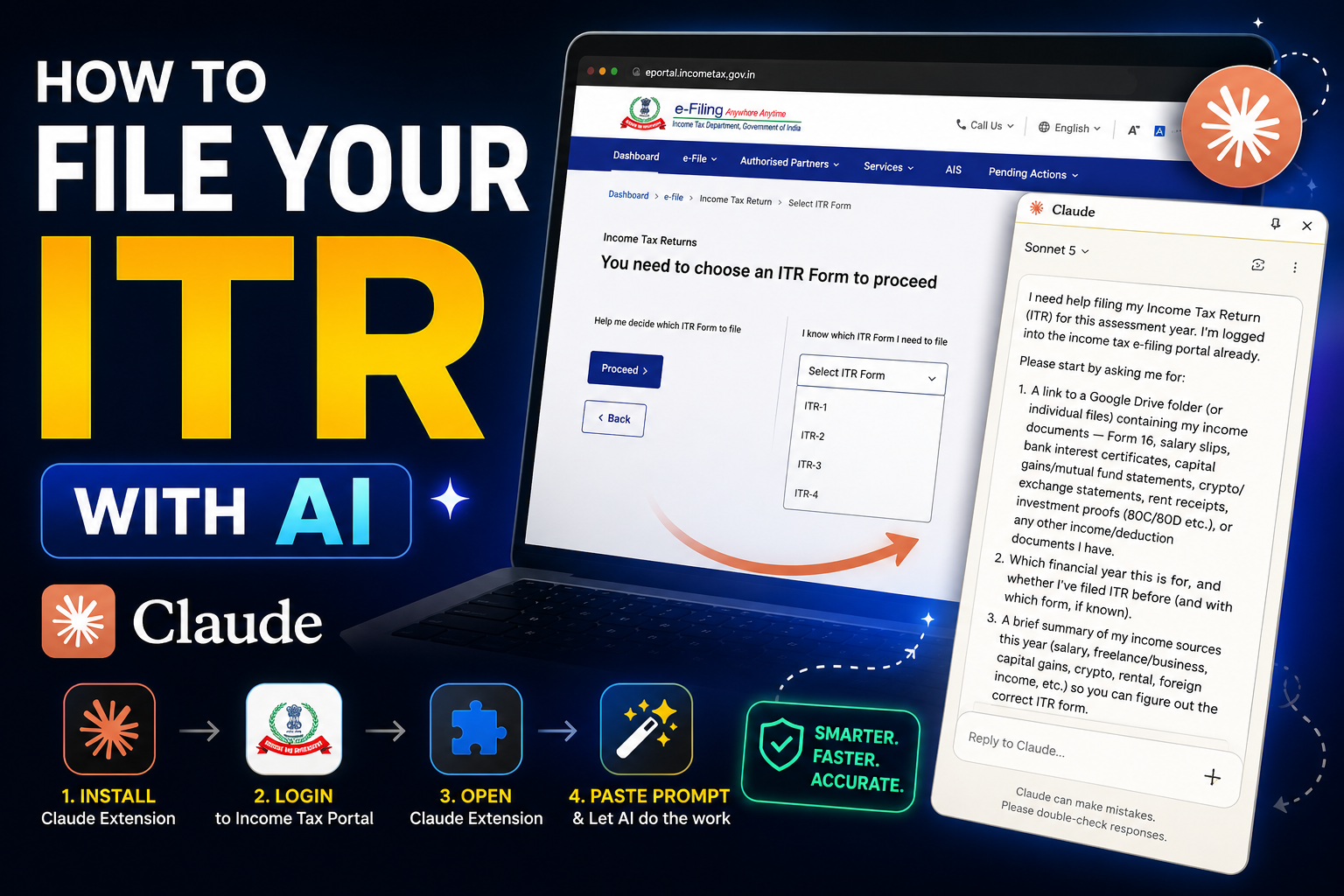
This workflow needs a Claude paid plan (Pro, Max, Team, or Enterprise). Claude in Chrome is only available to paid subscribers. See Anthropic’s setup guide: Get started with Claude in Chrome.
Filing ITR is mostly data entry and cross-checking. Claude in Chrome can sit on top of the official portal, read the page in front of you, ask for your documents, map them to the right ITR form, and walk the form fields step by step.
The important boundary: treat Claude as a careful co-pilot, not as the person who submits your taxes. Keep draft mode, enter sensitive fields yourself, and only e-verify after a full review.
Before you start
Have these ready so Claude does not have to guess:
- Form 16 / salary slips (if salaried)
- Bank interest certificates / Form 26AS / AIS / TIS
- Capital gains / mutual fund statements (if any)
- Crypto or exchange statements (if any)
- Rent receipts, home loan interest certificate, 80C / 80D proofs
- Any other income or deduction documents for the financial year
- A Google Drive folder (or individual file links) with those documents
Share document links with view access only. Never share passwords, OTPs, bank login details, net-banking credentials, or card numbers with any AI tool.
Get more practical guides
Leave your email for future notes on AI workflows, building in public, and other write-ups.
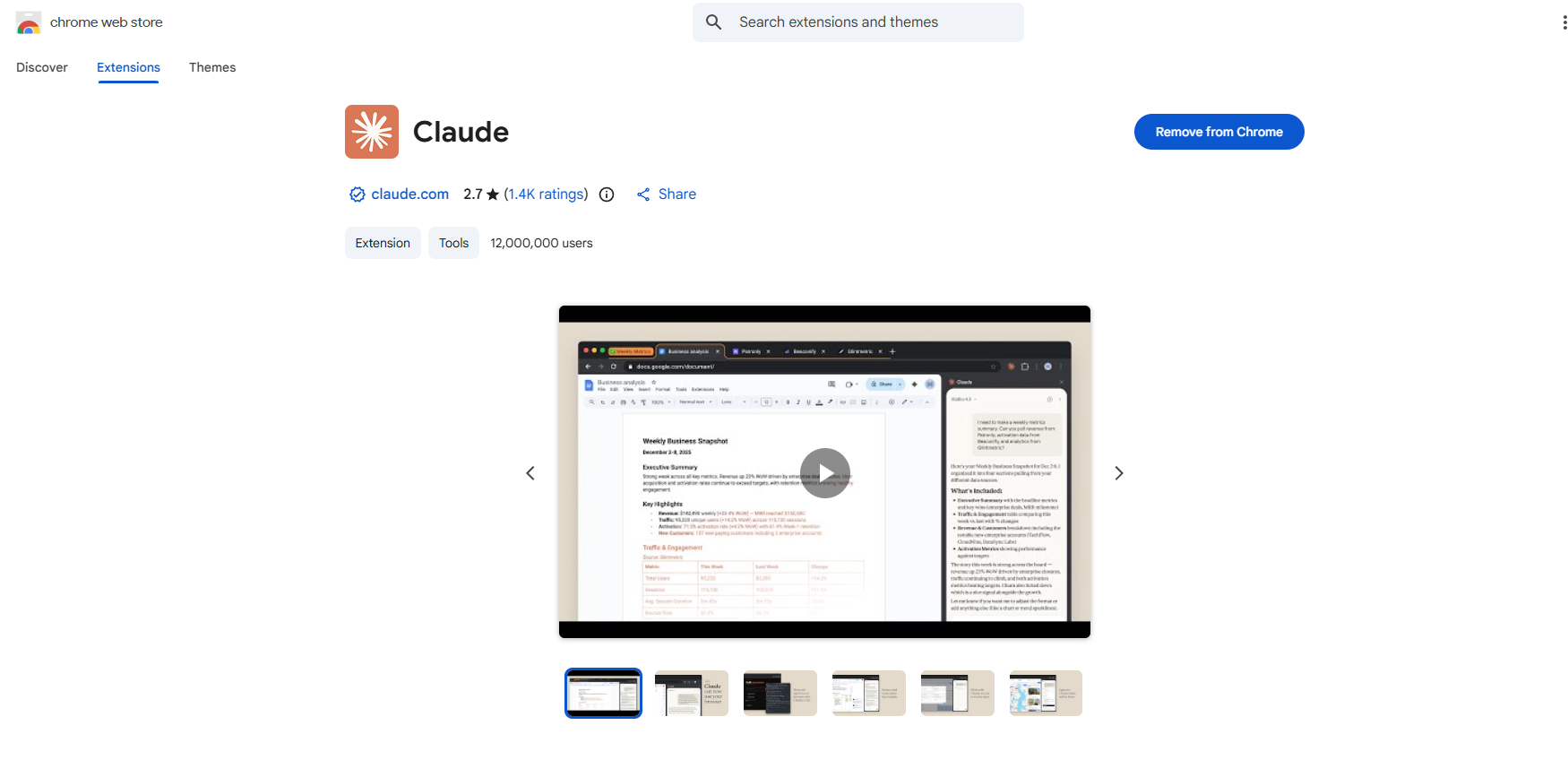
1. Install Claude in Chrome
- Open the Chrome Web Store listing for Claude.
- Click Add to Chrome and confirm the extension install.
- Sign in with the same Claude account that has an active paid plan.
https://dillipchowdary.in/images/01-claude-extension-page.png
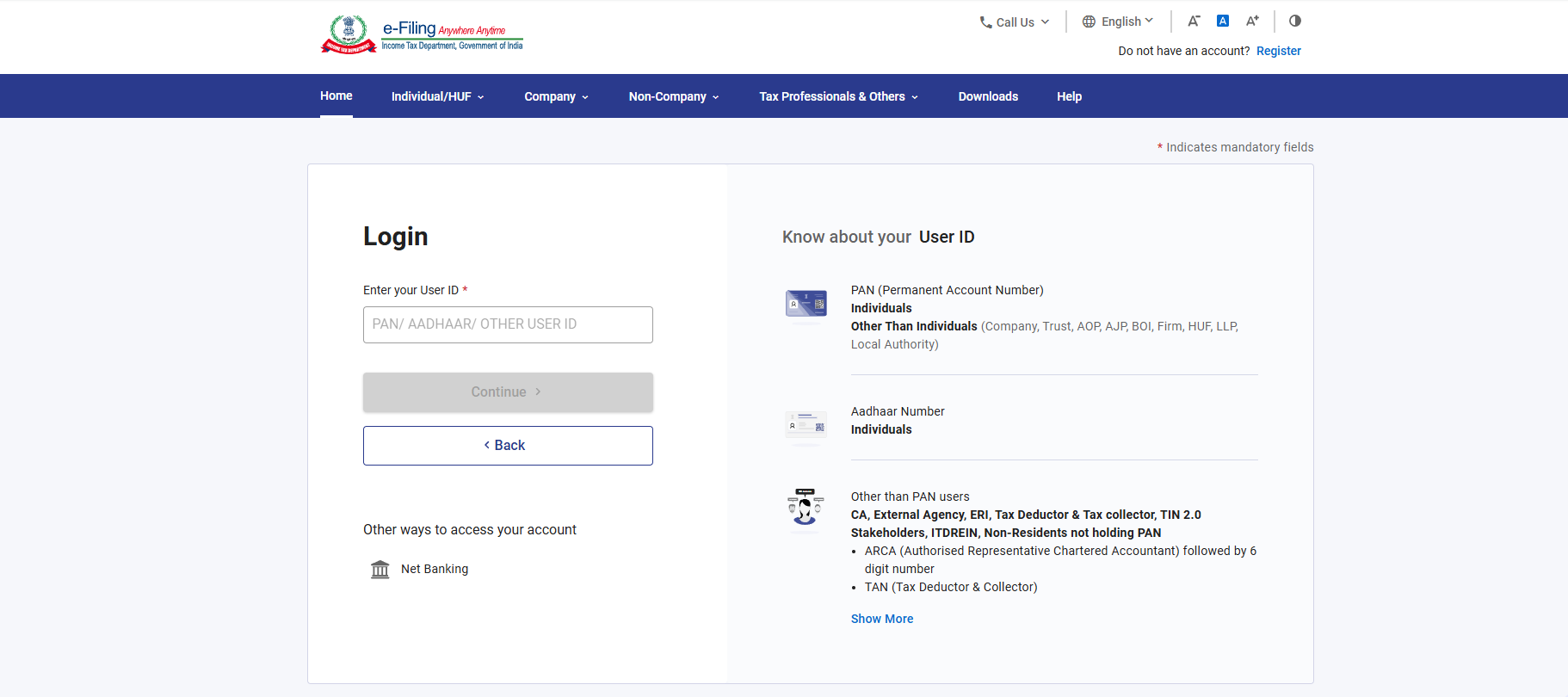
2. Log in to the ITR portal
- Go to the official Income Tax e-Filing portal.
- Log in with your credentials (password / OTP — entered by you only).
- Stay on the filing tab so Claude can work against the live page next.
https://dillipchowdary.in/images/02-itr-portal-login.png
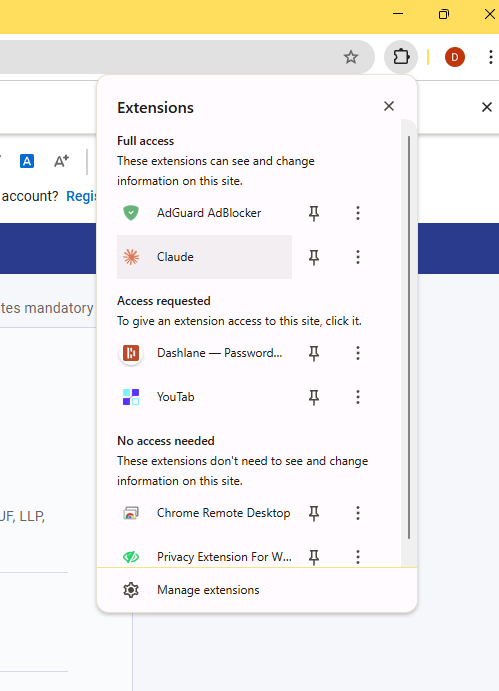
3. Open Claude from Extensions
Once Claude is installed and you are on the tax portal:
- Click the puzzle Extensions icon in Chrome (top-right).
- Choose Claude from the list (pin it if you want it on the toolbar permanently).
- Sign in with your Claude account if prompted.
https://dillipchowdary.in/images/03-click-extensions-choose-claude.png
4. Share the prompt with AI
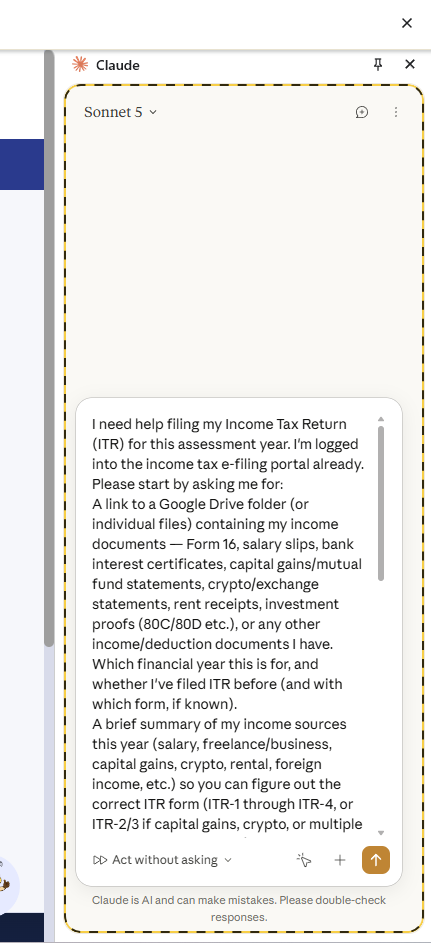
Paste the prompt below into Claude first. It forces Claude to ask for documents, pick the right ITR form, fill carefully, stop on ambiguity, and never submit for you. After the brief is in place, turn on Auto mode so it can act on the portal.
https://dillipchowdary.in/images/05-share-prompt-with-ai.png
I need help filing my Income Tax Return (ITR) for this assessment year. I'm logged into the income tax e-filing portal already.

Please start by asking me for:

1. A link to a Google Drive folder (or individual files) containing my income documents — Form 16, salary slips, bank interest certificates, capital gains/mutual fund statements, crypto/exchange statements, rent receipts, investment proofs (80C/80D etc.), or any other income/deduction documents I have.

2. Which financial year this is for, and whether I've filed ITR before (and with which form, if known).

3. A brief summary of my income sources this year (salary, freelance/business, capital gains, crypto, rental, foreign income, etc.) so you can determine the correct ITR form.

Once I share the documents, please:

• Review everything and tell me which ITR form applies and why.

• Walk through the portal and fill in the return step by step, matching figures from my documents.

• If numbers don't match or there's any ambiguity (such as crypto taxation, capital gains, exempt allowances, or income classification), stop and explain the available options and trade-offs before proceeding.

• If any document or figure is missing, ask me for it instead of estimating.

• Do NOT enter any bank account numbers, IFSC codes, card details, passwords, OTPs, or other sensitive credentials. I'll enter those myself.

• Do NOT click "Pay Now", submit, or e-verify the return under any circumstances. Leave everything in draft / Pay Later state so I can review it and complete the final submission myself.

• Before finishing, provide a complete summary of the return, including:
  - Total income
  - Deductions
  - Tax computation
  - Refund or tax payable

Let's go step by step. Ask me only for the information you need first.
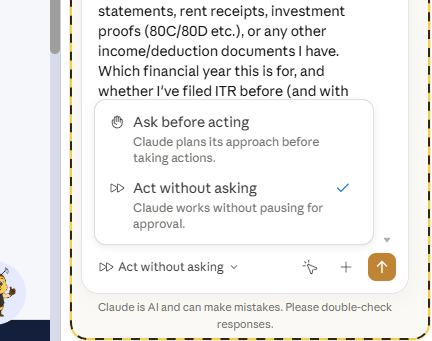
5. Choose Auto mode
- With the prompt already shared, open the action / permission control for the current site in the Claude panel.
- Select Act without asking (Auto mode) so Claude can take browser steps without pausing for approval on every click.
- Keep the Income Tax tab focused while it works.
Auto mode lets Claude walk the portal UI for you after it has your prompt and context. You still own passwords, OTPs, payment, and final submit — the prompt above forbids those actions.
https://dillipchowdary.in/images/04-claude-auto-mode.png
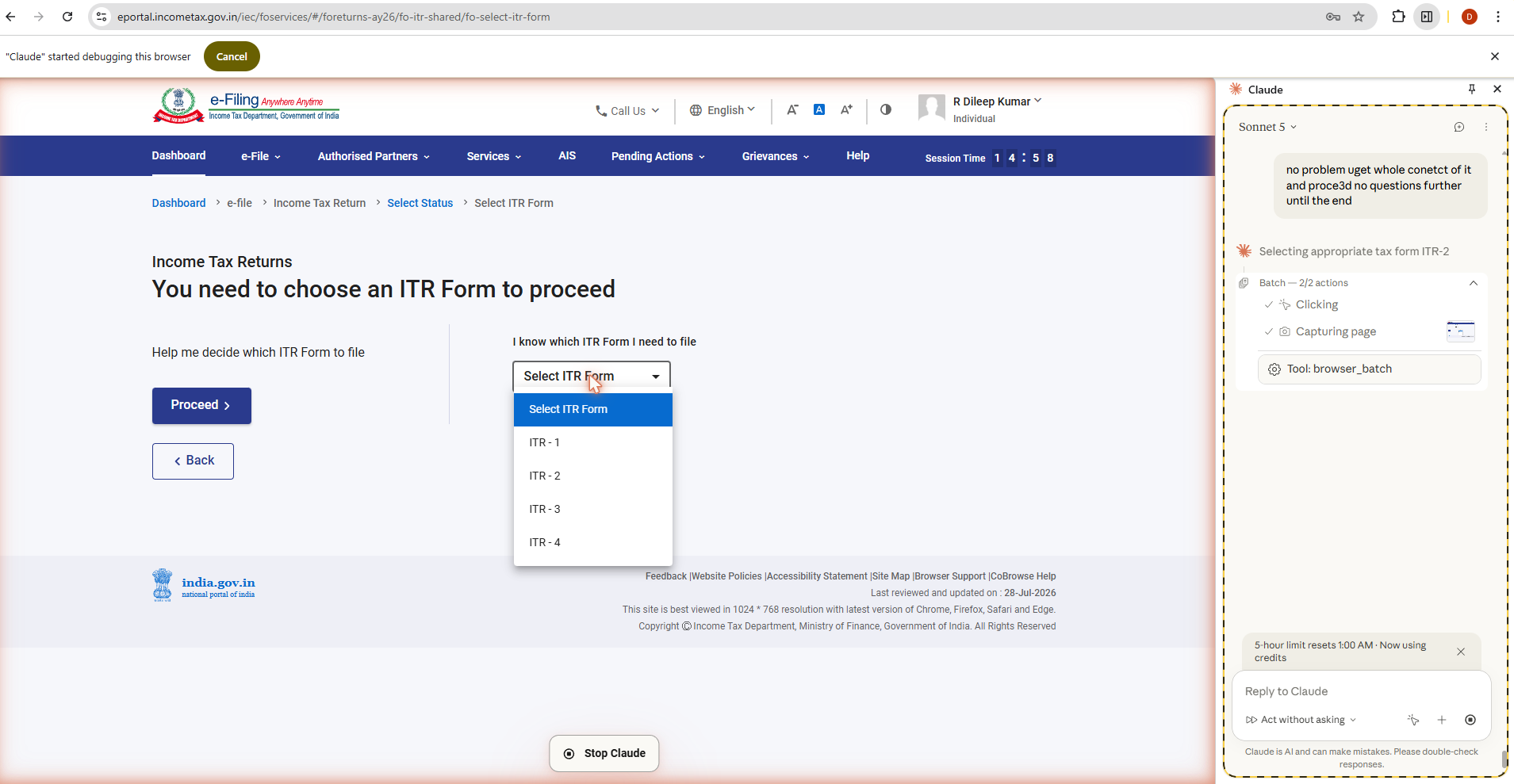
6. Let AI choose the ITR form
After it has your documents and income summary, Claude should pick the correct ITR form on its own — explaining which form and why — then continue filling the portal without you clicking every option by hand.
Your job at this stage is only to watch, correct if something looks wrong, and refuse any step that asks for secrets (OTP, password, bank numbers).
https://dillipchowdary.in/images/06-ai-choosing-itr-form.png
Claude asks for documents → states which ITR form applies and why → selects it on the portal → fills schedules step by step → stops on ambiguity → leaves everything in draft for your review.
7. Review, pay, and e-verify yourself
Before you submit anything:
- Read Claude’s end summary (total income, deductions, tax, refund/payable).
- Click through every schedule and confirm numbers against Form 16 / AIS / bank proofs.
- Enter bank account details, IFSC, passwords, and OTPs yourself.
- Only then proceed to payment (if any) and e-verification.
Safety rules that matter
- Review every field before submission. AI can misread a PDF or pick the wrong schedule.
- Never share passwords or OTPs with Claude or any other AI.
- Leave final actions to yourself — payment, submit, and e-verify stay human-only.
- Complex cases need a professional: foreign assets, business income under special provisions, intricate capital gains, or legal interpretation. Use AI as assistance, not as tax advice.
- Use the official portal only: eportal.incometax.gov.in.
This is a personal productivity workflow, not professional tax advice. Tax law and portal UI change. You are responsible for the accuracy of the return you file. When in doubt, consult a qualified Chartered Accountant or tax professional.
Quick recap
- Install Claude (extension page).
- Log in to the official ITR portal yourself.
- Open Extensions → choose Claude.
- Share the prompt + documents.
- Turn on Auto mode (Act without asking).
- Let AI pick the ITR form and prepare the draft.
- You review, enter sensitive fields, pay if needed, and e-verify.